
How to Fix IPTV Buffering — Complete 2026 Guide
August 2025
Published: August 11, 2025 | Updated: February 18, 2026 | By Mark
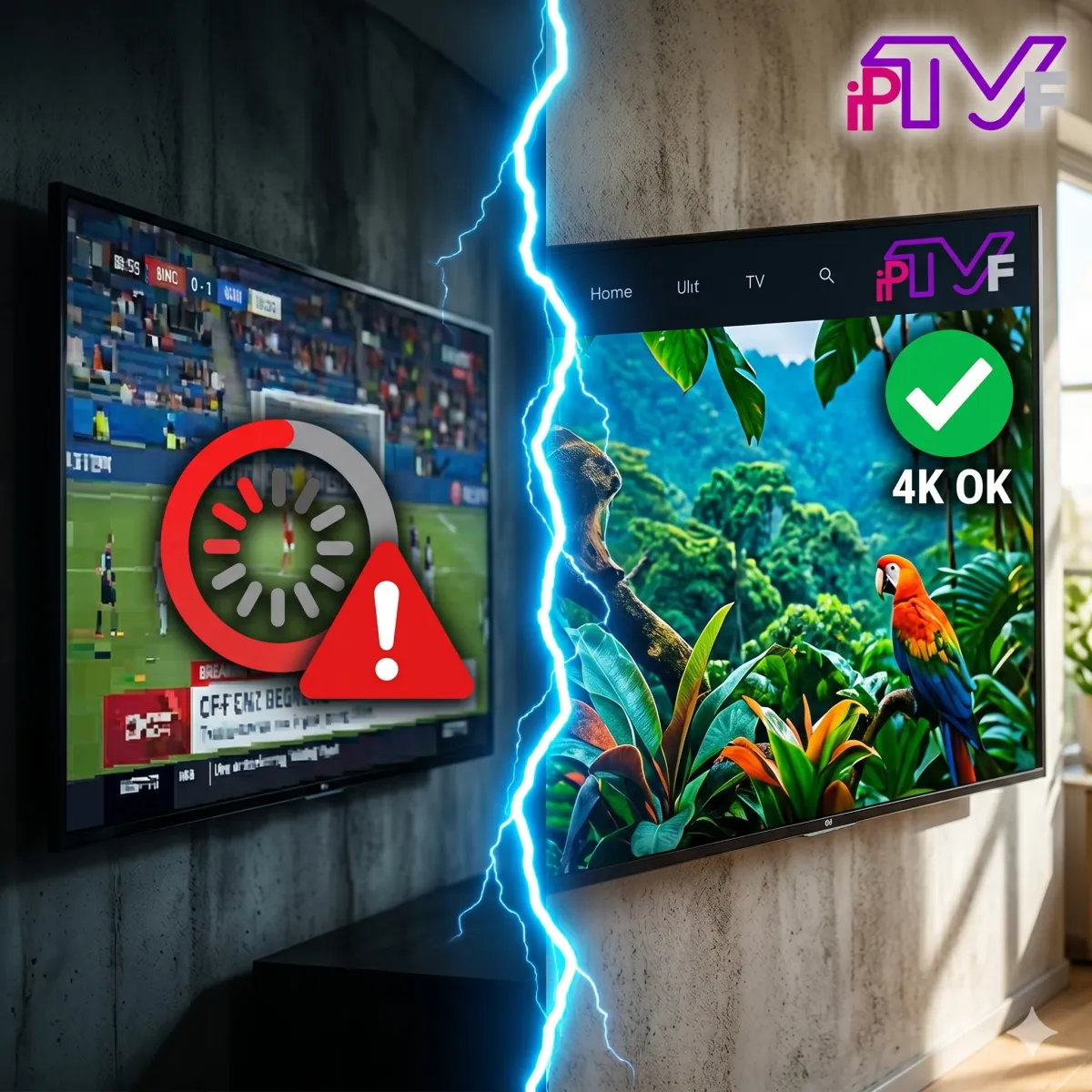
There is nothing more frustrating than sitting down to watch a highly anticipated live sports match or a new movie, only for the screen to freeze in a constant state of buffering. A spinning loading circle ruins the IPTV experience.
The good news is that 95% of IPTV buffering issues are caused by local network problems, incorrect device settings, or ISP throttling—all of which you can fix yourself. In this comprehensive 2026 guide, we will walk you through five proven steps to eliminate buffering and freezing from your IPTV service forever.
Table of Contents
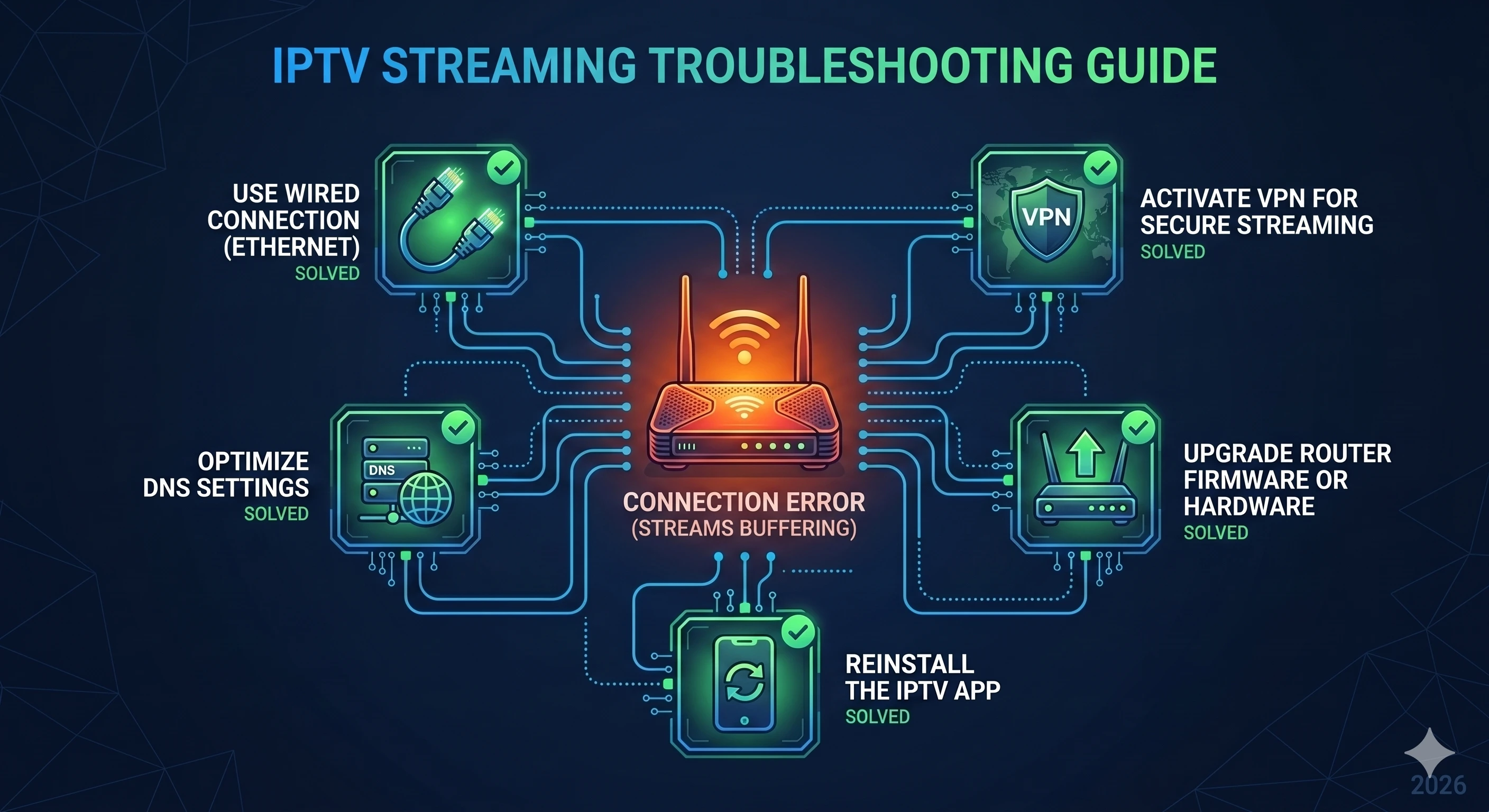
1. Ditch the Wi-Fi — Use an Ethernet Cable
We cannot stress this enough: Wi-Fi is the enemy of live IPTV streaming. Unlike Netflix or YouTube, which can download minutes of video ahead of time (pre-buffering), live IPTV happens in real-time. If your Wi-Fi signal drops for a fraction of a second due to interference from a microwave, a thick wall, or a neighbor's router, the live stream will immediately freeze.
The Fix: Purchase a standard Cat6 Ethernet cable and plug one end into your internet router, and the other end directly into your Smart TV, Android Box, or PC. If you use a Firestick, you can buy an inexpensive "Ethernet Adapter for Fire TV" from Amazon. A hardwired connection guarantees a stable flow of data packets, curing the vast majority of buffering issues instantly.
2. Perform a Hard Reset on Your Network
When was the last time you restarted your router? Routers are essentially small computers. Over time, their memory (RAM) fills up, caches become bloated, and they begin to drop data packets, resulting in lag.
The Fix: Perform a "Power Cycle".
- Unplug your internet router/modem from the wall socket.
- Unplug your streaming device (Smart TV, Firestick, Box) from the wall socket.
- Wait for exactly 60 seconds. This allows the capacitors to drain completely.
- Plug everything back in and let it boot up. This clears temporary memory and forces your devices to establish a fresh, uncorrupted connection.
3. Optimize Your IPTV App Settings
Sometimes, the network is fine, but the app you are using is struggling to process the video stream fast enough. Apps like IPTV Smarters Pro and TiviMate have specific settings designed to combat network fluctuations.
The Fix: Open your IPTV application and navigate to the Settings menu. Look for the following two options:
- Buffer Size (or Network Buffer): Change this from 'Small/Normal' to 'Large' or 'Max'. This tells the app to store slightly more video data in its memory before playing it on the screen, creating a safety net if your internet briefly dips.
- Hardware Decoder: Ensure this is turned ON. Hardware decoding forces your device's physical graphics chip to handle the heavy lifting of 4K video playback, preventing the app from crashing or stuttering.
4. Change Your DNS Servers
When you type a web address or connect to an IPTV server, your device asks a "Domain Name System" (DNS) server to find the correct IP address. By default, you use your Internet Service Provider's (ISP) DNS servers, which are often slow, congested, and poorly optimized.
The Fix: Change your device's DNS settings to point to a faster, premium public DNS like Google or Cloudflare. This improves routing speed between your device and the IPTV servers.
- Go to your device's Network/Wi-Fi settings.
- Select "Advanced Settings" or "IP Settings".
- Change IP Settings from DHCP to Static (if required).
- Find the DNS 1 and DNS 2 fields.
- Enter 8.8.8.8 and 8.8.4.4 (Google DNS), or 1.1.1.1 and 1.0.0.1 (Cloudflare).
5. Use a VPN to Bypass ISP Throttling
If your IPTV service works flawlessly during the day but buffers uncontrollably during prime-time hours or during massive sporting events (like Premier League matches or PPV boxing), your ISP is likely throttling your connection.
Many ISPs actively monitor traffic and will deliberately slow down speeds to IPTV servers to save bandwidth or discourage IPTV usage.
The Fix: Install a reputable VPN (Virtual Private Network) on your streaming device. A VPN encrypts your traffic, meaning your ISP can no longer see what you are doing or where you are connecting. Because they can't identify the IPTV traffic, they cannot throttle it. Connect to a VPN server geographically close to your location, and the buffering should cease immediately.
Advanced Fixes: When the Basics Don't Work
If you have tried all five steps above and your stream still stutters, the problem may be deeper in your setup. Here are three advanced solutions used by streaming professionals.
Use a Wired Powerline Adapter
If running a physical Ethernet cable across your home is not practical, a Powerline Ethernet Adapter is the next best option. It transmits your internet signal through your home's existing electrical wiring, giving you a near-wired experience without drilling holes or trailing cables. Sets from brands like TP-Link cost between $30–$50 and provide significantly more stable latency than Wi-Fi.
Check Your IPTV Provider's Server Status
Not all buffering is caused by your network. Overloaded IPTV servers — particularly during live sports events with millions of concurrent viewers — can cause streams to stutter regardless of your internet speed. Most professional providers, including IPTV FUSION, maintain a dedicated status page or WhatsApp support line where you can confirm if a server-side issue is being resolved. If you are with a budget provider, consider switching to a service with genuinely load-balanced infrastructure.
Test With a Different IPTV App
The app itself can be the bottleneck. If you are using a free or outdated player, try switching to TiviMate (the industry gold standard for Android TV and Firestick) or IPTV Smarters Pro (best for Smart TVs). These applications are built specifically for live IPTV and handle stream recovery, buffer management, and EPG data far more efficiently than generic media players.
IPTV Buffering by Device: Quick-Reference Table
| Device | Top Fix | Best App |
|---|---|---|
| Amazon Firestick | Ethernet Adapter + VPN | TiviMate |
| Android TV Box | Wired Ethernet + Buffer Max | TiviMate / IPTV Smarters |
| Samsung / LG Smart TV | Ethernet + DNS Change | IPTV Smarters Pro |
| Windows PC / Mac | VPN + Wired Connection | VLC Media Player |
Still Buffering? It Might Be Your Provider
If you have followed all five steps above, hardwired your device, and are getting speeds over 25 Mbps, but the buffering persists—the issue is not on your end. You are likely using an over-subscribed, low-quality IPTV provider with weak servers.
Upgrade to Buffer-Free Streaming
IPTV FUSION utilizes advanced anti-freeze technology and load-balanced servers to guarantee 99.9% uptime, even during the biggest sports finals.
Frequently Asked Questions
Quick answers to common buffering issues.
This is usually due to ISP throttling or network congestion. During peak hours (7 PM - 11 PM), millions of people are streaming simultaneously. If your ISP detects high data usage, they may throttle your connection. Using a VPN solves this.
For smooth 4K streaming, you need a stable connection of at least 25-30 Mbps. For standard HD (1080p), 10-15 Mbps is sufficient. Always test your speed directly on the device you are using via Speedtest.net, not just on your phone.
Yes, if the buffering is caused by ISP throttling. A VPN encrypts your traffic, making it impossible for your internet provider to see what you are doing, thus preventing them from slowing down your stream.
Wi-Fi interference is often invisible — nearby networks, microwave ovens, and thick walls all compete on the same frequency. Even a 'strong' Wi-Fi signal can suffer from high packet loss, which causes live IPTV to freeze. Switching to a wired Ethernet connection eliminates this completely.
Yes, in many cases. Over time, corrupted or oversized cache files in apps like TiviMate or IPTV Smarters can cause slow channel loading and freezing. Go to Settings > Apps > [Your IPTV App] > Clear Cache and restart the app.
Written by Mark, Lead Streaming Technician
Streaming technology experts and IPTV industry reviewers since 2020. This article has been reviewed and verified for accuracy as of April 2026. Our team tests IPTV services hands-on before publishing any comparison or recommendation.