
How to Set Up IPTV on Any Smart TV in 2026
February 2026
Published: February 06, 2026 | Updated: February 14, 2026 | By Mark
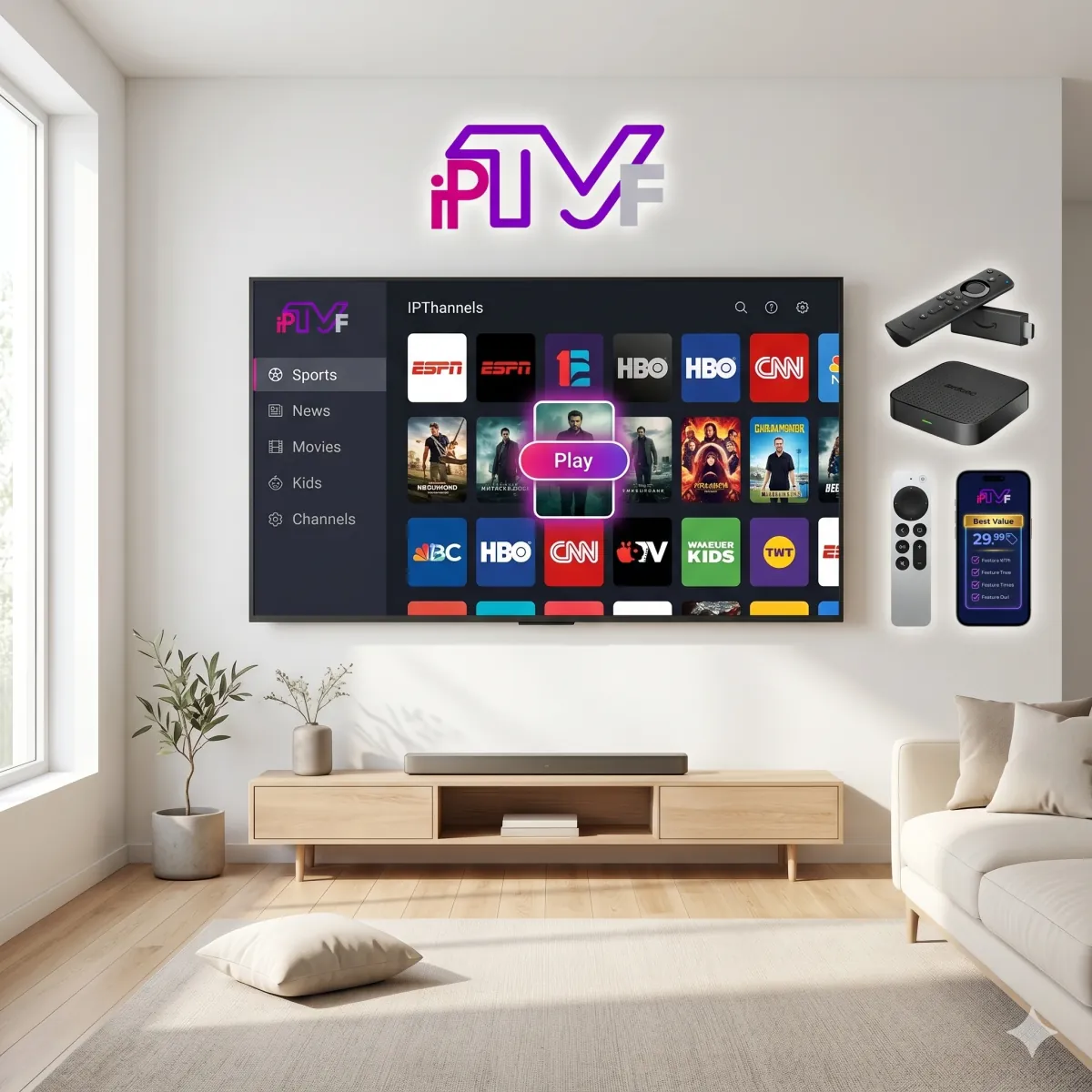
Streaming live TV over the internet has never been easier. Gone are the days of needing clunky set-top boxes or complicated satellite dishes. If you own a modern Smart TV from Samsung, LG, Sony, or any brand running Android TV, you already have the hardware required to access over 20,000 live channels instantly.
This comprehensive guide will walk you through the step-by-step process of configuring an IPTV service on your television. Whether you are a beginner or a seasoned streamer looking for the most efficient setup, this article covers everything you need to know to get started in under 5 minutes.
Table of Contents
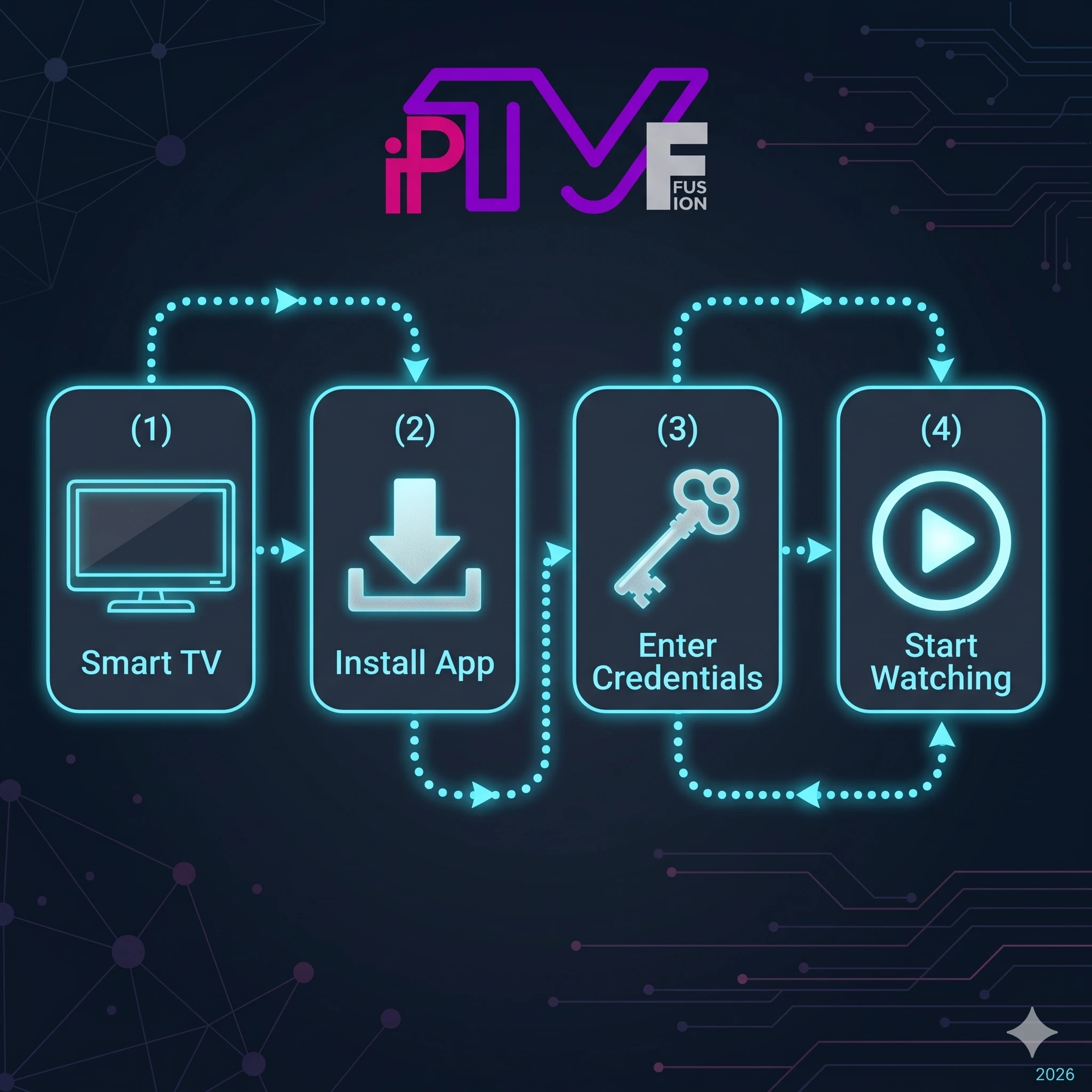
Step 1: Secure Your Internet Connection
Before installing any applications, the first and most critical step is ensuring your television has a robust internet connection. IPTV streaming, particularly for HD and 4K content, requires a constant, uninterrupted flow of data. Unlike streaming Netflix, where the video can buffer ahead, live TV happens in real-time. If your connection drops for even a second, your video will freeze.
Pro Tip: Always use a wired Ethernet cable instead of Wi-Fi. While modern Wi-Fi routers are fast, they are susceptible to interference from walls, microwaves, and other devices. Plugging an Ethernet cable directly from your router into your Smart TV guarantees maximum stability and completely eliminates 90% of common buffering issues.
Step 2: Choose and Download the Right IPTV Player App
Your Smart TV cannot play IPTV channels natively out of the box; it requires an "IPTV Player" app. This app acts as the interface (like a cable box menu) where you input your subscription details and view the channel list.
Here is how to find the right app based on your TV brand:
- Android TV & Sony: Open the Google Play Store and search for TiviMate (highly recommended for its premium feel) or IPTV Smarters Pro.
- LG Smart TVs (webOS): Open the LG Content Store. Search for IPTV Smarters Pro, IBO Player, or Smart IPTV.
- Samsung Smart TVs (Tizen): Open the Samsung Smart Hub. Search for IPTV Smarters Pro or IBO Player.
Once you locate your preferred app, click "Install" or "Download" to add it to your television's home screen.
Step 3: Obtain Your IPTV Credentials
To populate the app with channels, you need an active subscription from a premium provider like IPTV FUSION. When you subscribe or request a free trial, you will receive an email containing two sets of configuration details:
- M3U URL: A long web link that contains your entire playlist.
- Xtream Codes API: A set of three items (Server URL, Username, and Password).
We strongly recommend using the Xtream Codes API method. It is much easier to type with a TV remote and allows the app to load the Electronic Program Guide (EPG) and Video-on-Demand (VOD) libraries much faster and more reliably.
Step 4: Configure the IPTV App
Open the IPTV player app you downloaded in Step 2. The exact interface will vary, but the process is universally similar:
If using IPTV Smarters Pro:
- Select "Login with Xtream Codes API".
- Any Name: Enter "IPTV FUSION" (or whatever you like).
- Username: Enter the username from your welcome email.
- Password: Enter your password.
- URL: Enter the server URL provided (e.g., http://live.iptv-fusion.com:8080).
- Click "Add User".
If using TiviMate (Android TV only):
- Click "Add Playlist".
- Select "Xtream Codes".
- Enter the Server Address, Username, and Password.
- Click "Next" and allow the app to process the channels.
Step 5: Load Channels and Optimize
After clicking "Add User" or "Next", the app will take between 10 to 60 seconds to download the massive channel list, VOD library, and TV guide data from the IPTV FUSION servers. Do not interrupt this process.
Once complete, you will be presented with a beautiful, organized menu featuring Live TV, Movies, and Series categories. You can now browse through the folders (e.g., US Sports, UK Entertainment, Documentary) and click any channel to begin streaming instantly.
For the best experience going forward, explore your app's settings. You can usually configure the app to launch automatically when the TV turns on, and adjust the player settings to use "Hardware Decoding", which ensures smooth playback for 4K streams.
Start Streaming Today
Setting up IPTV on a Smart TV is a straightforward process that anyone can complete in a few minutes. By combining a modern television with a reliable, anti-freeze IPTV provider like IPTV FUSION, you unlock a world of unlimited entertainment at a fraction of the cost of traditional cable.
Bonus: Setting Up IPTV on Amazon Firestick (Step-by-Step)
The Amazon Firestick is the most popular IPTV device in the world due to its low cost and simplicity. Here is how to set it up specifically:
- Enable Unknown Sources: Go to Settings → My Fire TV → Developer Options → Apps from Unknown Sources → On.
- Install Downloader App: From the Fire TV home screen, search for the free "Downloader" app and install it.
- Download TiviMate: Open Downloader, type
https://tivimate.comand follow the install instructions. - Add Your Playlist: Open TiviMate → Add Playlist → Enter your IPTV FUSION M3U URL or Xtream Codes credentials (provided via WhatsApp after signup).
- Enable EPG: In TiviMate settings, add the EPG XML URL provided with your subscription to see the full TV guide.
IPTV App Compatibility by Device
| Device / OS | TiviMate | IPTV Smarters Pro | IBO Player |
|---|---|---|---|
| Amazon Firestick | ✅ Yes (sideload) | ✅ Yes (App Store) | ❌ No |
| Android TV / Box | ✅ Play Store | ✅ Play Store | ✅ Play Store |
| Samsung (Tizen) | ❌ Not available | ✅ Smart Hub | ✅ Smart Hub |
| LG (webOS) | ❌ Not available | ✅ Content Store | ✅ Content Store |
| Sony (Android TV) | ✅ Play Store | ✅ Play Store | ✅ Play Store |
Troubleshooting Common Setup Issues
- Channels not loading? Double-check your M3U URL or Xtream Codes credentials are entered exactly as provided, with no trailing spaces.
- EPG not showing? Ensure you have entered the EPG XML URL in your app settings and allow up to 15 minutes for the guide data to download on first load.
- App crashes on launch? Clear the app cache (Settings → Apps → Clear Cache) and restart your device. If the issue persists, reinstall the app.
- Freezing during 4K channels? Switch from Wi-Fi to Ethernet and ensure your device has Hardware Decoder enabled in the app settings.
Don't Have a Subscription Yet?
Test our service on your Smart TV risk-free. Get 24-hour access to 20,000+ channels.
Frequently Asked Questions
Common questions about Smart TV setup.
Not necessarily. Most modern Smart TVs (Samsung, LG, Sony) have native IPTV apps available in their app stores. However, a dedicated Android Box or Firestick often provides a smoother, faster experience because they have better processors.
For Samsung TVs running Tizen OS, 'IPTV Smarters Pro' and 'IBO Player' are currently the most reliable applications available in the Smart Hub.
TiviMate is exclusively built for the Android TV operating system. Since LG uses webOS and Samsung uses Tizen, TiviMate is not compatible with those devices without adding an external Android stick.
Yes. Samsung (Tizen) and LG (webOS) both have IPTV player apps available in their native app stores, such as IPTV Smarters Pro and IBO Player. You don't need an Android device — just search in the Smart Hub or Content Store.
TiviMate is widely considered the best IPTV player for Firestick. It supports Xtream Codes API, M3U playlists, and EPG. IPTV Smarters Pro is a strong free alternative for those who prefer not to pay for TiviMate.
Written by Mark, Lead Streaming Technician
Streaming technology experts and IPTV industry reviewers since 2020. This article has been reviewed and verified for accuracy as of April 2026. Our team tests IPTV services hands-on before publishing any comparison or recommendation.